Best Pinterest Downloader for Mac and Windows in 2026
Reviewing the top tools for getting images off Pinterest and onto your computer—and why the best downloader might not be a downloader at all.
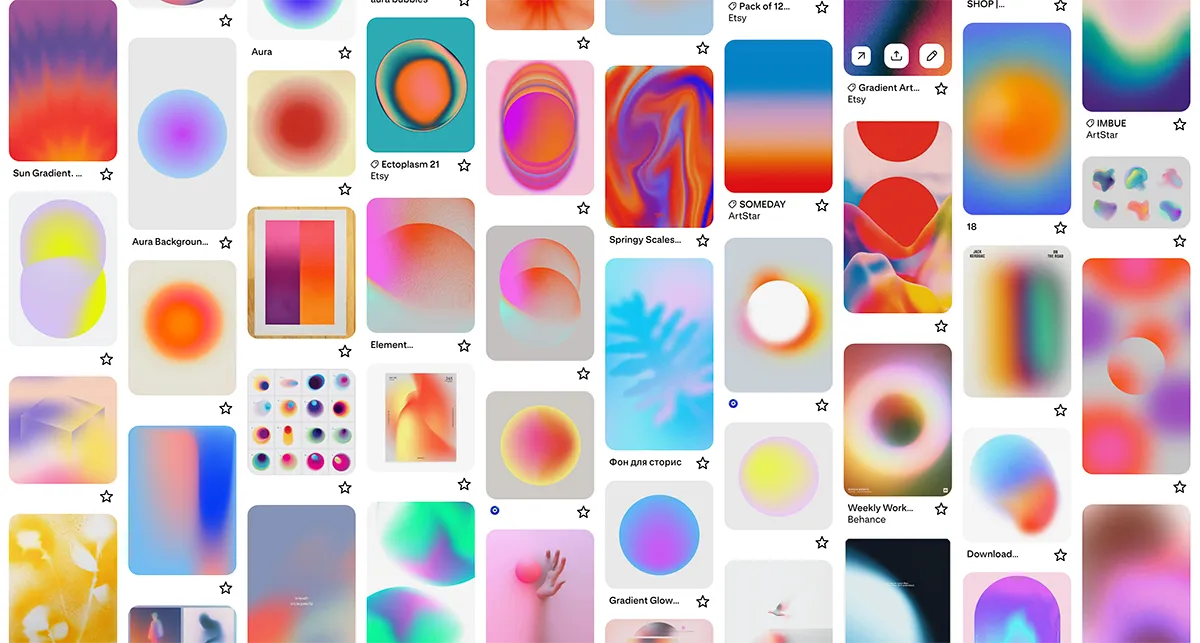 * Pins displayed on this website are sourced directly from Pinterest and are the property of their respective owners or creators.
Published: December 7, 2025
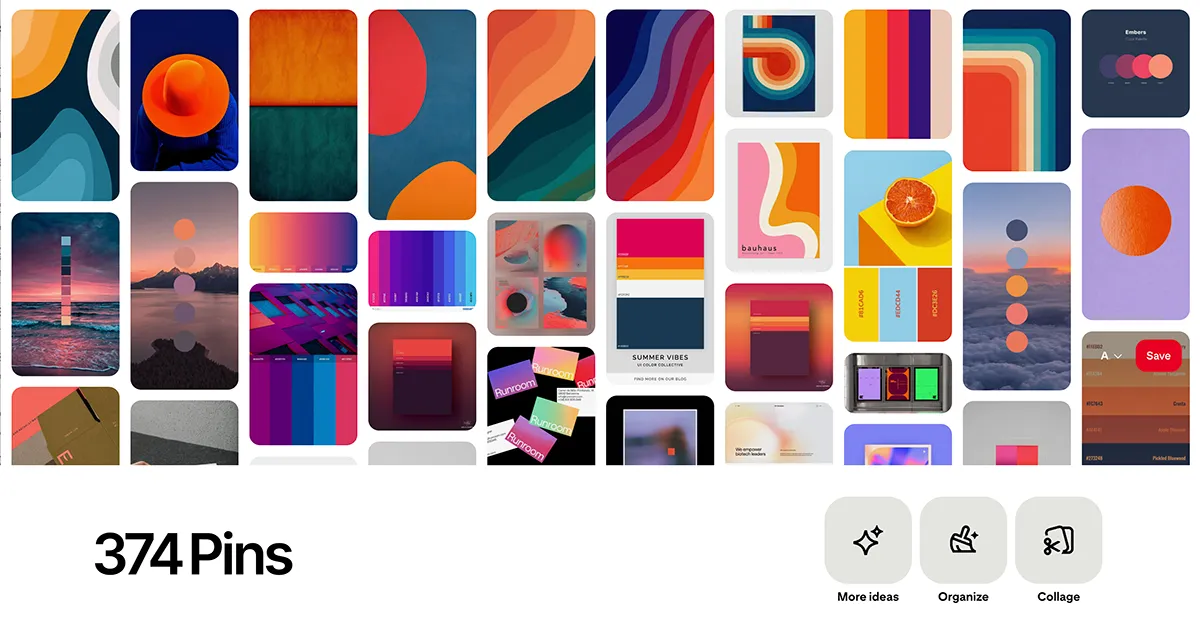
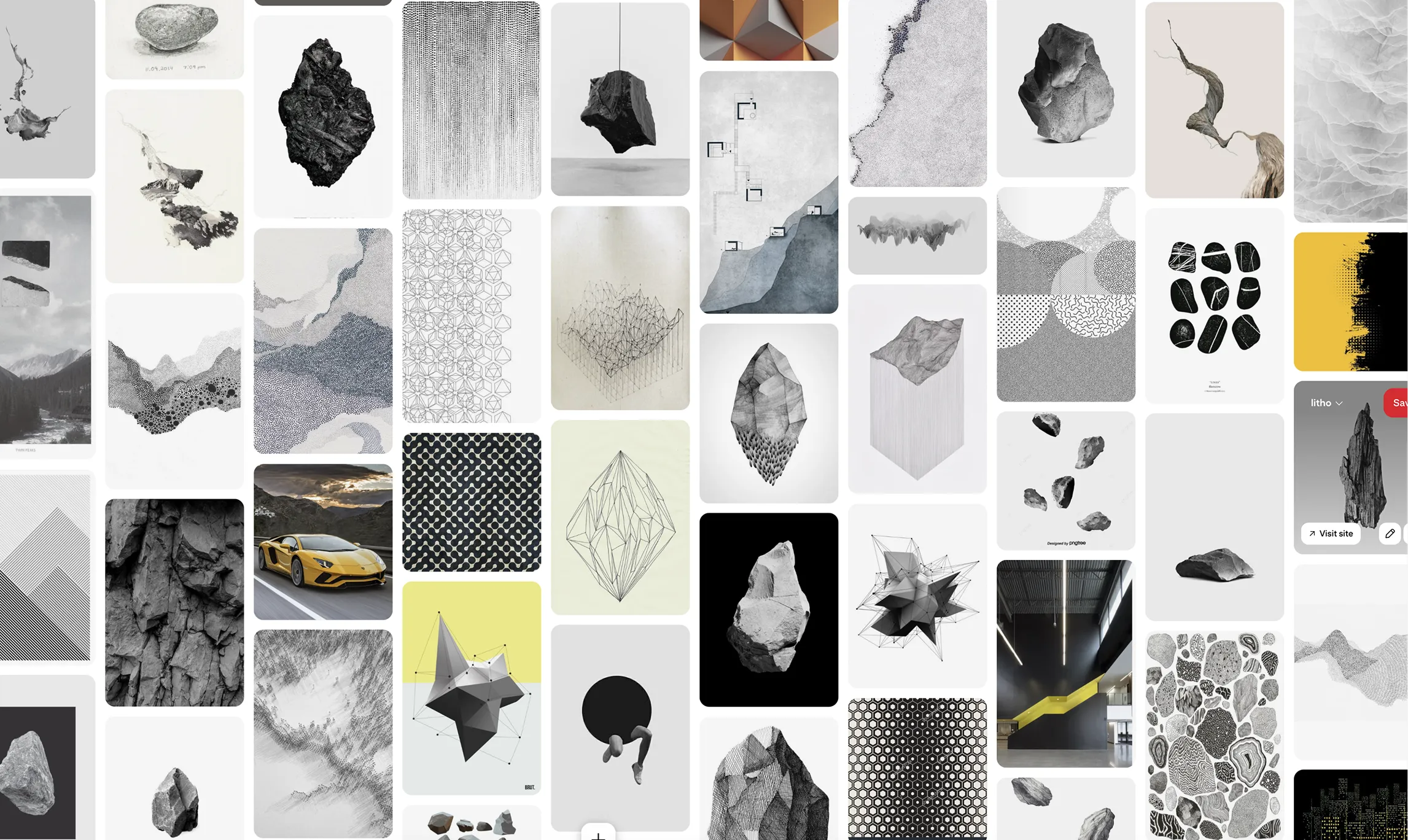
Whether you are building a moodboard, archiving inspiration, or gathering reference materials, at some point every designer searches for the “best Pinterest downloader.” You want high-resolution images, and you don’t want to spend three hours right-clicking and saving.
In 2026, the landscape of Pinterest tools has shifted. Let’s break down the best options available for Mac and Windows users, and explore why the industry standard is actually moving away from traditional downloading entirely.
Option 1: The Browser Extension Scrapers (Pinora, Pinpasta)
For a long time, the go-to method for bulk downloading was using a Chrome extension. Tools like Pinora or Pinpasta work by “scraping” the HTML of your active Pinterest tab as you scroll.
- The Good: They can grab many images at once and usually package them into a single
.zipfile. - The Bad: Because they rely on browser scraping, they are prone to breaking whenever Pinterest updates its code. More importantly, they require deep permissions to read your active browser tabs, creating a significant privacy footprint.
- The Ugly: You are left with a cluttered Downloads folder full of unorganized
.jpgfiles that you still have to manually import into your design software.
Option 2: The CLI Scripts (For the Dev-Savvy)
If you are comfortable with Terminal on a Mac or Command Prompt on Windows, there are various open-source Python scripts available on GitHub that use unofficial APIs to scrape boards.
- The Good: Highly customizable if you know how to code.
- The Bad: Requires technical setup, managing Python environments, and dealing with inevitable API rate limits or IP bans from Pinterest.
- The Ugly: When the script breaks, you have to debug the code yourself.
Option 3: The Modern Solution (Direct Figma Integration)
Ask yourself: Why are you downloading these images? If the answer is “to use them in Figma or another design tool,” then a traditional downloader is the wrong tool for the job.
The best Pinterest downloader for a professional workflow isn’t a downloader at all—it’s a direct API integration like Pinner.
Why Direct Integration Wins:
- Zero Clutter: Images bypass your hard drive completely and drop straight onto your Figma canvas.
- Private Boards Work: Because Pinner authenticates with the official Pinterest API securely, it can access your private and secret boards flawlessly. Scrapers often require you to make your boards public first.
- Intelligent Syncing: When a board changes, you don’t download a new
.zipfile. You just click “Sync” in Figma, and Pinner adds only the new images. - Native Auto Layout: Instead of a pile of scattered images, your inspiration arrives neatly organized in a responsive Auto Layout grid.
The Verdict
If you are a casual user who just wants to backup a recipe board to an external hard drive, a free Chrome extension might suffice (if you don’t mind the privacy trade-offs).
But if you are a professional designer on Mac or Windows using these images for moodboards, brand identity, or UI references, skip the downloads folder. Use Pinner to seamlessly bridge the gap between your inspiration and your canvas.