How to Backup Pinterest Boards (And Actually Keep Them Useful)
Why hoarding ZIP files is the wrong way to backup your Pinterest inspiration, and how to create a living visual archive instead.
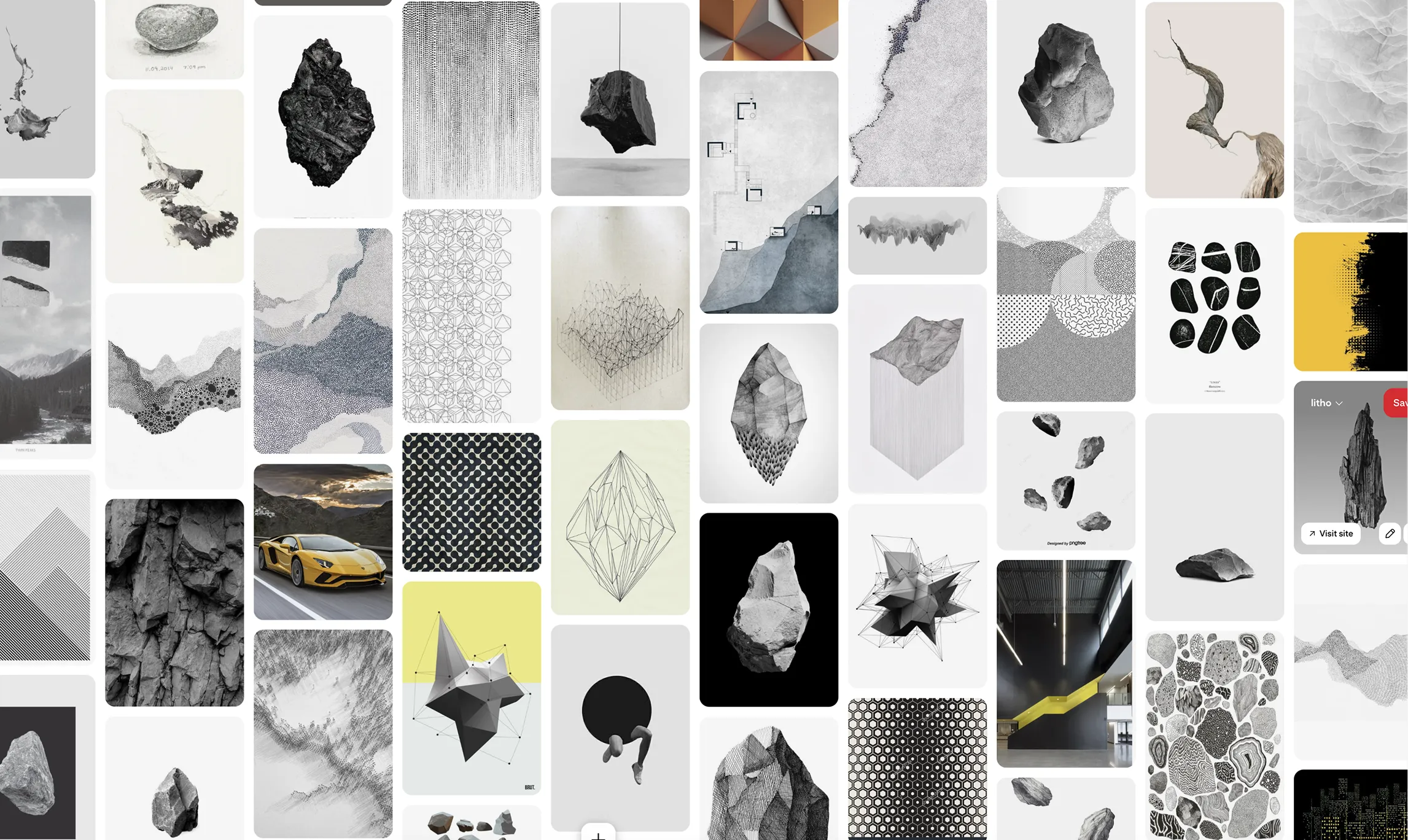 * Pins displayed on this website are sourced directly from Pinterest and are the property of their respective owners or creators.
Published: December 7, 2025
Pinterest is an incredible platform for discovering inspiration, but it’s not a secure long-term storage solution. Boards can be accidentally deleted, pins can disappear when the source website goes offline, and accounts can be compromised.
If your brand identity research, interior design concepts, or client moodboards live exclusively on Pinterest, you are trusting a third-party platform with your most valuable creative assets. You absolutely need a backup strategy.
The Old Way: The “ZIP Hoarder” Method
If you search for “how to backup Pinterest boards,” you’ll find a lot of articles recommending Chrome extensions or downloader apps that scrape your board and generate a massive .zip file of images.
While this technically creates a backup on your local hard drive, it’s virtually useless in a modern creative workflow. Why?
- Zero Visual Organization: A folder with 500 randomly named image files is impossible to scan quickly. You lose the beautiful masonry layout that made the Pinterest board useful in the first place.
- Lost Source Links: You have the image, but you’ve lost the context of where it came from.
- Static and Stale: The moment you download that
.zipfile, your backup is out of date. If you add three new pins tomorrow, you have to run the entire cumbersome backup process again.
The Modern Way: The “Living Archive” in Figma
The best place to backup visual inspiration isn’t a deep, dark folder on your hard drive—it’s an infinite canvas where you can actually see, organize, and interact with the images.
For professional designers, Figma has become the ultimate visual archive. And with a native integration like Pinner, backing up your Pinterest boards to Figma is seamless, secure, and smart.
How to Backup a Board with Pinner:
- Open a new Figma file (this will serve as your archive).
- Run the Pinner plugin.
- Select the Pinterest board you want to backup.
- Click “Import.”
Why this is a superior backup strategy:
- Beautifully Organized: Pinner imports your pins into a perfectly structured Auto Layout grid. You can actually see your entire backup at a glance.
- The Smart Re-Sync: This is the game-changer. When your Pinterest board inevitably gets updated with new pins, you don’t have to start over. Just open your Figma archive, click Pinner’s “Sync” button, and the plugin will intelligently fetch only the newest pins and append them to your board.
- Cloud-Backed Security: By syncing to Figma, your backup is instantly saved to the cloud, accessible from anywhere, and inherently protected against local hard drive failures.
Stop Hoarding, Start Archiving
A backup is only as good as its usability. Don’t settle for scraping your boards into messy ZIP files that you’ll never look at again. Use Pinner to turn your fragile Pinterest boards into robust, living archives on the Figma canvas.