How to Download Entire Pinterest Boards (And Why You Actually Shouldn't)
Trying to bulk download Pinterest boards into a messy ZIP file? There's a much better workflow for designers.
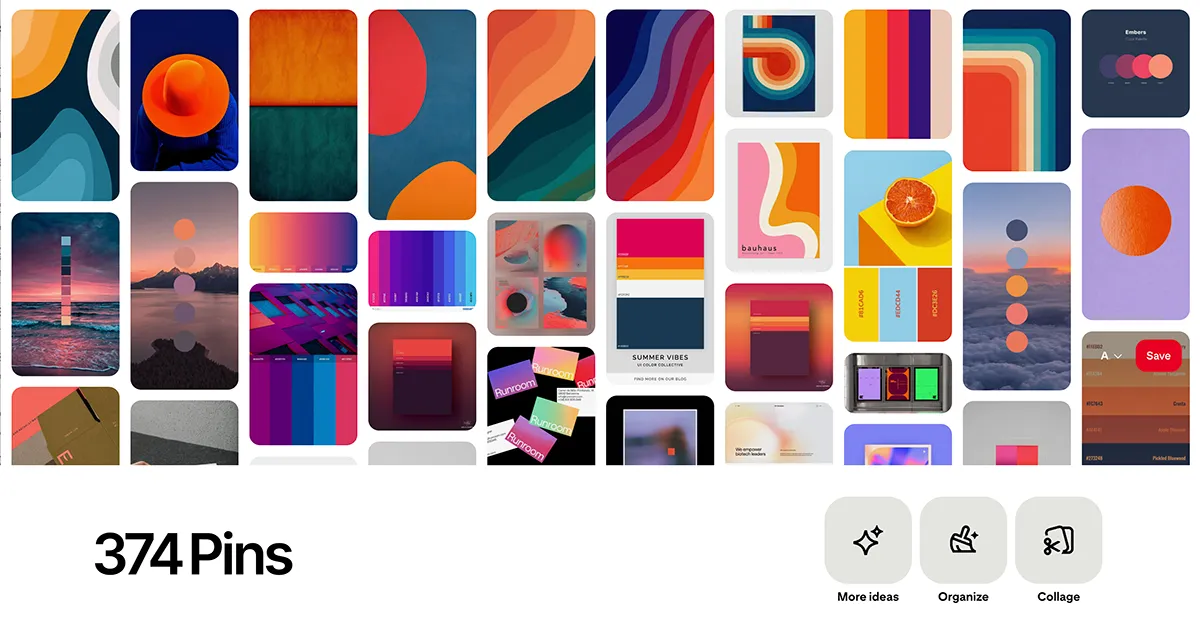 * Pins displayed on this website are sourced directly from Pinterest and are the property of their respective owners or creators.
Published: December 7, 2025
If you’ve ever tried to figure out how to download an entire Pinterest board at once, you already know the struggle. Right-clicking “Save Image As” on 200 pins is a guaranteed path to a repetitive strain injury.
Naturally, designers turn to “bulk downloaders” or browser extension hacks to scrape their boards. But before you fill your hard drive with massive .zip files full of unorganized, terribly named .jpgs, let’s talk about why the download workflow itself is broken—and what you should do instead.
The Problem with Bulk Pinterest Downloaders
Tools like Pinora or Pinpasta promise to solve the problem by scraping your Pinterest browser tab and spitting out a .zip file of all your images. While this sounds like a solution, it actually creates several new problems for your design workflow:
- The Unpacking Mess: You now have a folder on your computer filled with randomly named files like
pin_12849182.jpgthat you still have to manually drag into Figma or Photoshop. - Loss of Context: Once downloaded, those images lose their connection to the original Pinterest link. If a client asks, “Where did you find this?”, you’ll be digging through your browser history.
- Version Control Nightmares: Pinterest boards are living documents. When you (or a client) add 10 new pins to the board next week, you have to run the entire download-unzip-import process all over again and try to figure out which ones are new.
- Security Risks: Most bulk downloaders are Chrome extensions that require deep permissions to read your active browser tabs. Do you really want a random scraper having access to your browsing session?
The Professional Workflow: Sync, Don’t Download
If your ultimate destination for these images is your design canvas (like Figma), why use your hard drive as a middleman?
Professional design teams are abandoning the “download” model entirely. Instead, they use native API integrations like Pinner to securely connect Pinterest directly to Figma.
Here is how the modern workflow looks:
- Open the Pinner plugin directly inside your Figma file.
- Select the board you want (even private or secret boards).
- Click “Import.”
In seconds, all 200 pins are placed directly onto your canvas, perfectly organized in a clean Auto Layout grid. No .zip files. No Chrome extensions. No cluttered Downloads folder.
Handling Board Updates (The Re-Sync Advantage)
The biggest flaw of downloading a board is that it’s a static snapshot in time.
With a native integration like Pinner, your Figma file stays connected to the source. If a client adds a dozen new pins to a shared board on Tuesday, you simply click the “Sync” button in Figma. Pinner intelligently analyzes the board and pulls in only the new images, dropping them right into your existing layout.
The Verdict
If you’re a designer looking for the best way to download a Pinterest board, the real answer is: don’t.
Bypass the messy local storage middleman. Ditch the questionable scraping extensions. Connect your tools directly and keep your focus exactly where it belongs: on the design canvas.