How to Create a Moodboard in Figma (The Fast Way)
A quick guide to creating moodboards in Figma, covering the slow manual method and a professional workflow that saves hours.
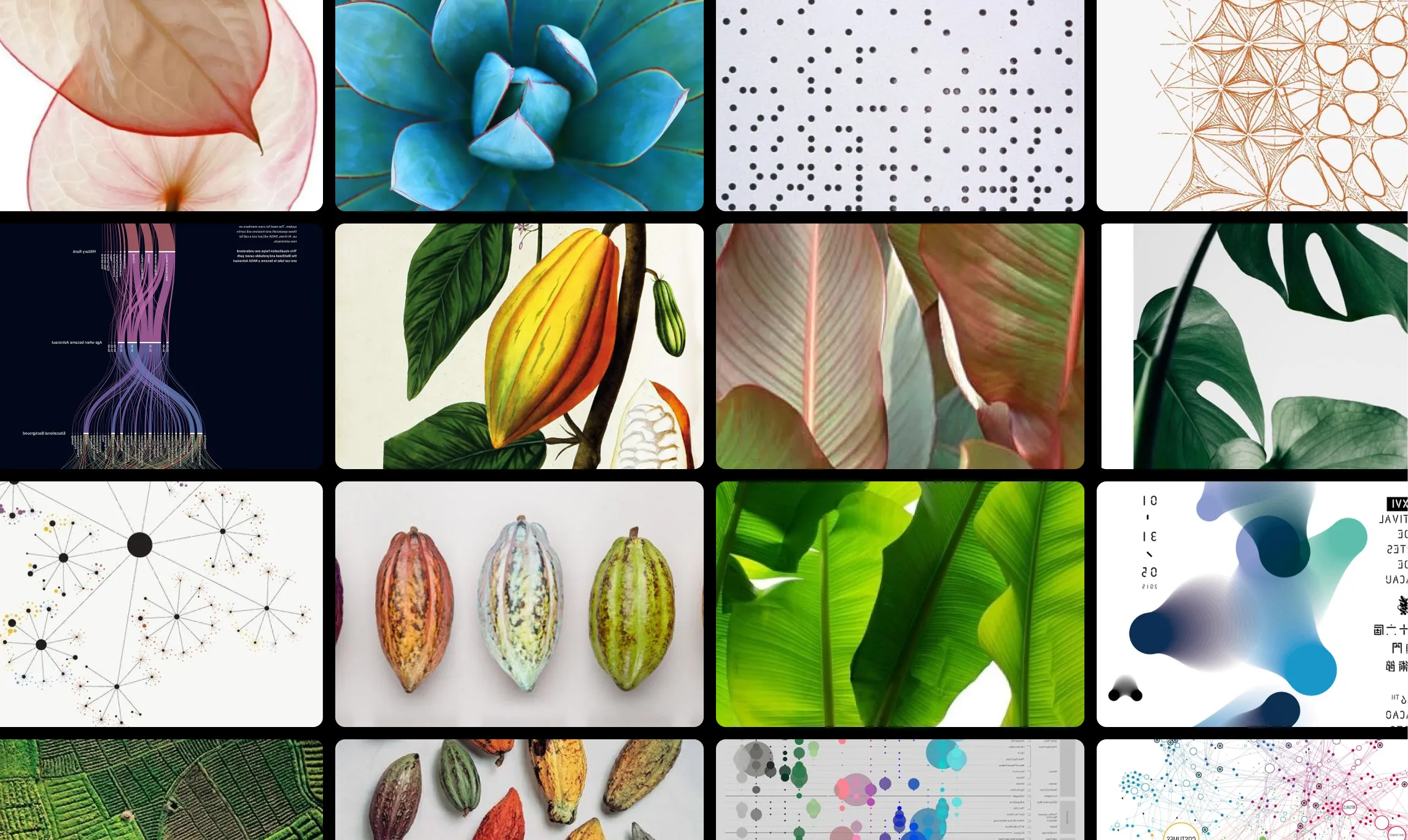 * Pins displayed on this website are sourced directly from Pinterest and are the property of their respective owners or creators.
Creating a moodboard in Figma is a great way to collate and share inspiration for a project. But getting your images onto the canvas can be a major bottleneck. This quick guide will show you the standard method and a much faster, professional alternative.
Method 1: The Manual Way
This is the process most people start with:
- Find an image you like on Pinterest or elsewhere.
- Right-click, “Save Image As…”, and save it to a folder.
- Repeat this for all your images.
- Drag the entire folder of images onto your Figma canvas.
- Spend time resizing and organizing everything.
This works, but it’s slow and pulls you out of your creative flow.
Method 2: The Professional Way (Using a Plugin)
The faster way is to use a plugin that connects your inspiration source directly to Figma. This eliminates the need to save files to your computer.
We’ll use Pinner, a plugin built for this exact purpose. Check out The Complete Guide to Pinterest-to-Figma Plugins if you’d like to compare.
- Install Pinner: Get it from the Figma Community.
- Connect Pinterest: Securely link your Pinterest account to get access to your boards.
- Import: Choose a board and click “Import”. The plugin fetches all the images and arranges them neatly on your canvas.
The Bottom Line
While the manual method is functional, a dedicated plugin like Pinner transforms moodboarding from a tedious chore into a fast, seamless part of your design process. It keeps your inspiration and your design work in the same place, which is a huge win for any professional workflow.
Ready to take it to the next level? Check out our guide to The Insanely Fast Moodboard Workflow for Design Studios to see how Pinner integrates with other power-user tools.